WhatsApp: +91 99986-85666
Connected to WiFi but No Internet? Here’s How to Fix It
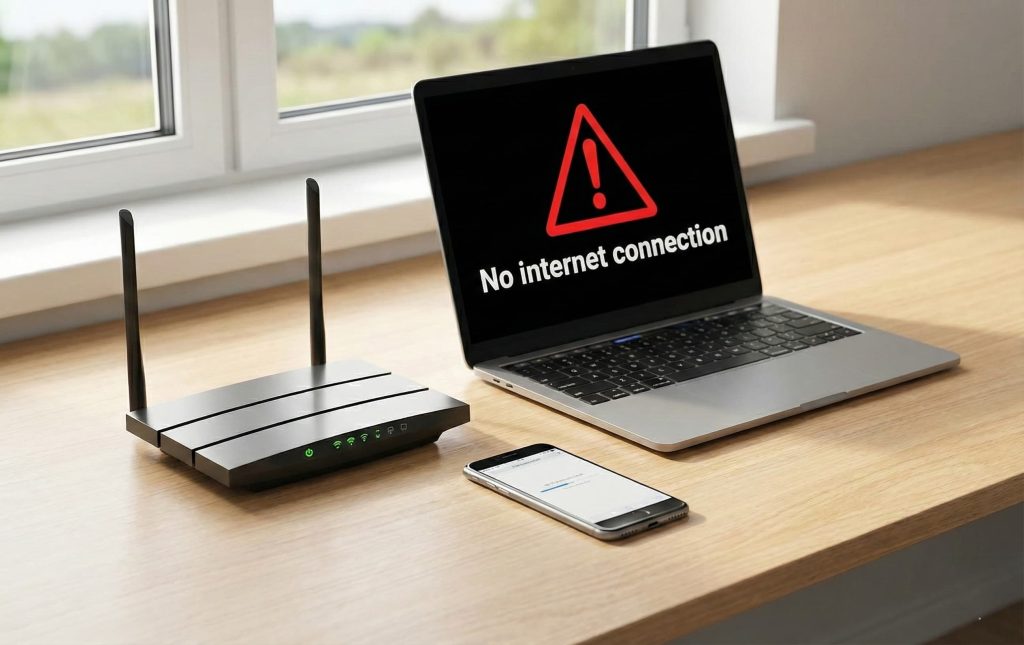
Table of Contents
Connected to WiFi but No Internet? How to Diagnose and Fix It Fast
Connected to WiFi but no internet connection—this is one of the most common and frustrating problems faced by internet users across Surat. Your device shows full signal bars, yet nothing loads online.
The good news is that this problem almost always has a clear cause and a fix you can do yourself in under five minutes. This guide walks you through exactly how to diagnose it, fix it step by step and when to stop troubleshooting and call your provider instead.
What “Connected to WiFi but No Internet Connection” Actually Means
WiFi and internet are two different things and understanding this difference makes everything else easier to diagnose.
WiFi is the local wireless connection between your device and your router. When your phone shows it is connected to WiFi, it simply means your device can talk to the router sitting in your home or office.
Internet is what your router connects to, the global network managed by your service provider. If that connection between your router and your ISP breaks down, your device stays connected to WiFi locally but cannot reach anything outside.
This is why you can sometimes load local apps or your router’s settings page but cannot open Google, YouTube or WhatsApp, the local link works but the external one does not.
Connected to WiFi but No Internet Connection — Is It Your Device, Router or ISP?
Before touching any settings, run this quick check. It will save you time and tell you exactly where the problem is.
Step 1 — Check Another Device
Connect a second phone or laptop to the same WiFi. If that device also shows internet not available, the problem is with your router or your ISP, not your device. If the second device works fine, the problem is only with your original device.
Step 2 — Check Your Router Lights
Look at the lights on your router. Most routers have a separate internet or WAN indicator light. If it is red, orange or off, your router has lost its connection to the internet entirely. If all lights are green or white, the router thinks it is connected, which points to a DNS or settings issue.
Step 3 — Try Loading a Website by IP Address
On any browser, type 142.250.67.46 (a Google server IP). If this loads but google.com does not, your DNS is the problem. If neither loads, the connection itself is broken.
This three-step check tells you whether you are dealing with a device issue, a router issue or a DNS issue, before you spend time on the wrong fix.
How to Fix Connected to WiFi but No Internet Connection — Step by Step
Fix 1 — Restart Your Router the Right Way
Most people restart their router by switching it off and on immediately. The correct method takes 60 seconds and works far better.
- Switch off your router and modem completely
- Unplug both from the power socket
- Wait a full 60 seconds, this clears the memory, not just the power
- Plug the modem back in first and wait 30 seconds
- Plug the router back in and wait for all lights to stabilise
This single step resolves the majority of connected to WiFi but no internet connection issues in Indian homes.
Fix 2 — Forget the Network and Reconnect
On your phone or laptop, go to WiFi settings, find your network name and choose Forget or Remove. Then reconnect by entering the password again. This refreshes the authentication between your device and the router and fixes many cases where the connection appears active but data is not flowing.
Fix 3 — Check All Physical Cables
Follow the cable from your router back to the wall socket or ONT box. Press every connector firmly into its port. A slightly loose cable at any point can cause intermittent or complete internet loss while WiFi continues to broadcast normally. This is especially common after cleaning or moving furniture near the router.
Fix 4 — Update Network Drivers on Windows
If you are on a Windows laptop, press Windows key + X, open Device Manager expand Network Adapters, right-click your WiFi adapter and choose Update Driver. Outdated drivers are a common cause of no internet connection errors that appear only on one device.
Fix 5 — Disable VPN or Proxy
If you use a VPN app, turn it off and check if internet returns. VPN software can sometimes block all traffic if its connection drops, a situation called a kill switch. Turning off the VPN for 60 seconds tells you immediately whether it was the cause.
How to Fix DNS Errors Causing No Internet Connection
A DNS failure is one of the leading causes of being connected to WiFi but no internet connection in India. Your device connects to the router normally but cannot translate website names into addresses, so nothing loads. Changing your DNS server takes less than two minutes and fixes this completely.
On Android
Go to Settings → Network and Internet → Private DNS → type dns.google and save.
On Windows
Go to Control Panel → Network and Sharing Centre → Change Adapter Settings → right-click your WiFi → Properties → select Internet Protocol Version 4 → enter 8.8.8.8 as preferred DNS and 8.8.4.4 as alternate.
On Your Router (Fixes All Devices at Once)
Log into your router settings — usually at 192.168.1.1 or 192.168.0.1 — find DNS settings, and enter the same values. This applies the fix to every device on your network simultaneously.
According to TRAI’s broadband quality of service regulations, DNS performance is a direct factor in the internet experience delivered to end users in India. Slow or failing DNS is a legitimate service quality issue — not just a device setting.
When Connected to WiFi but No Internet Connection Is Your Provider’s Fault
If you have tried every fix above and internet is still not available, the problem is almost certainly with your ISP, not your equipment.
Signs that point to a provider-side issue:
- The router’s WAN or internet light is red or off even after a full restart
- Multiple devices on your network all show no internet simultaneously
- Neighbours using the same provider are also affected
- The problem started suddenly without any change on your end
In this situation, stop troubleshooting your own equipment. The fix is not on your side. Contact your provider’s support line and ask them to check the line status at your address. A good ISP support team can confirm an outage or run a remote line diagnostic within minutes.
You can reach Fibervalley’s customer support team in Surat directly for line checks and outage updates at your address.
Why Fiber Networks Have Fewer of These Problems
One reason some Surat residents see the connected to WiFi but no internet problem more often than others comes down to the type of connection they have.
Older cable and copper-based connections degrade over distance and are more vulnerable to moisture, heat and physical wear, all common issues in Gujarat’s climate. These weaknesses cause intermittent drops where the router stays on but internet access breaks.
FTTH fiber connections, where fiber optic cable runs directly to your home, are significantly more stable. Fiber does not carry electrical signals, so it is not affected by interference, heat or electrical fluctuations. Uptime consistency on fiber infrastructure is measurably better than on copper last-mile networks.
If you keep facing the connected to WiFi but no internet problem every few weeks despite troubleshooting, it may not be a settings issue, it may be the technology of your connection itself. You can compare broadband plans available in Surat to see whether an upgrade makes sense for your situation.
When to Call Support Instead of Troubleshooting Further
Stop self-troubleshooting and call your ISP when:
- The problem has lasted more than 2 hours after a full router restart
- Your router’s internet light is red or off and does not recover
- You are losing internet multiple times per week despite no changes on your end
- You have already tried DNS changes, driver updates, and reconnection with no result
Persistent connected to WiFi but no internet connection errors that keep returning usually point to a physical infrastructure issue, a damaged cable, a faulty ONT box, or a port problem at the exchange. These cannot be fixed from your end.
For Surat residents on the Fibervalley network, our support team can run a remote line diagnostic and dispatch a technician if needed. Reach us through the Fibervalley support and contact page.
Frequently Asked Questions
Why does my phone show WiFi connected but internet is not working?
Your phone is connected to your router locally but your router has lost its connection to the internet. This can happen due to an ISP outage, a router glitch or a DNS failure. Start by restarting your router fully, then test on a second device to narrow down whether it is a device issue or a network issue.
How do I fix connected to WiFi but no internet connection on Android?
Go to Settings → Network and Internet → Private DNS and set it to dns.google. Also try forgetting the WiFi network and reconnecting. If the problem persists on all devices, restart your router by unplugging it for 60 seconds before plugging back in.
Why does this problem happen at night more often in Surat?
Evening hours between 8pm and 11pm are peak usage times when more users are online simultaneously. On older copper-based networks, congestion during these hours can cause dropped connections and internet not available errors even while WiFi stays connected. Fiber networks handle peak loads significantly better.
How do I know if my ISP has an outage in Surat?
Check if the WAN or internet light on your router is red or off. Then check if neighbours using the same provider are also affected. If yes, it is an ISP-side outage. Contact your provider’s support line directly — a good support team should confirm your area’s line status immediately.
Is it better to use fiber internet to avoid this problem?
Yes, in most cases. Fiber optic infrastructure is more stable than cable or copper connections because it is not affected by electrical interference, heat, or physical wear. Residents in Surat who switch to FTTH fiber connections generally report fewer instances of sudden internet drops. You can view Fibervalley’s fiber internet plans in Surat to compare available options.
Still Seeing No Internet After Trying Everything?
If restarting, reconnecting, and changing DNS has not worked, the issue is likely at the infrastructure level — not your device. Fibervalley’s support team in Surat can check your line status remotely and arrange a fix without delay.